
🍽️ How representation types work
When the user does the accounting for a purchase as representation, they choose a representation type and enter the number of participants. Expense:
- 📊 Calculates the VAT
- 💰 Splits the cost into a deductible and a non-deductible part
- ✅ Accounts for it on the right accounts
👉 Applies to: administrators who set up the templates. Users find how to register representation in the user article Register representation.
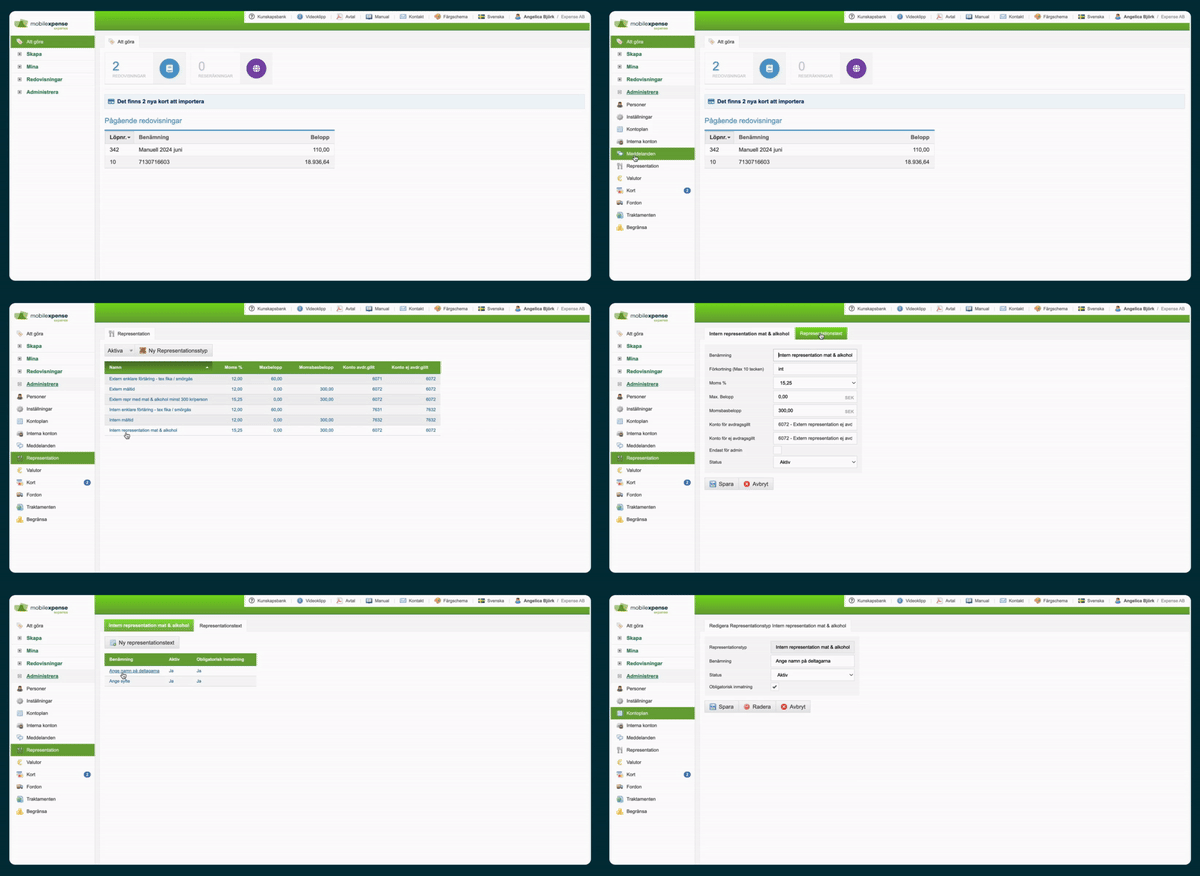
⚙️ Step 1 – Find and activate representation types
- Go to Administrate > Representation.
- Activate or deactivate the templates you will use.
- Click New representation type to create your own.
✅ Adapt the selection to your company's representation policy.
📝 Step 2 – Set up a representation type
A representation type contains:
- 📝 Name
- 🔤 Abbreviation (shows on the PDF)
- 💰 VAT percentage
- 👥 Maximum deductible amount per person
- 📊 VAT base amount
- 📁 Account for deductible cost
- 📁 Account for non-deductible cost
- 👤 Visibility (administrator or everyone)
- ✅ Status (active/inactive)
👉 Clear names make it easier for users to choose the right template.
❓ Step 3 – Add mandatory questions
- Open the representation type.
- Go to the Representation text tab.
- Add the questions.
| Internal representation | External representation | |
|---|---|---|
| Names of participants | ✅ | ✅ |
| Purpose | ✅ | ✅ |
| External company name | – | ✅ |
👥 Step 4 – Activate participant rows (optional)
With participant rows, each participant gets their own row with first and last name, instead of a free-text field.
- Go to Administrate > Representation and open the representation type.
- Select Fill text input per participant.
- Click Save.
- Delete the question ”Enter participant names” on the Representation text tab.
✅ If the user enters 4 participants, 4 rows are created automatically. The setting applies per representation type. Note: unlike the regular free text, the participant rows do not show on the PDF.
🍷 Step 5 – Receipts with mixed VAT
If the receipt has several VAT rates, for example food (12%) and alcohol (25%), use a template with standard VAT (15.25%). Then the user does not need to split the accounting.
👉 Expense has updated templates for meals and takeaway. If you have your own templates or accounting rules, check that they work with the new ones.
📊 Step 6 – Allow splitting of representation
If you want users to be able to split a representation cost across several cost centers, projects or accounts:
- Go to Administrate > Settings and open the Accountcoding tab.
- Select the checkbox for splitting representation (Enable representation dividing).
- Click Save.
✅ Users can now split the representation when they do the accounting.
👤 For users
How users register representation in the app – receipt, participants, purpose and splitting the cost – is described in the user article Register representation.
🎬 See how it works
⚠️ Good to know
- 🍽️ External representation: customers, suppliers, partners – for example a customer lunch or a business dinner. Always enter the company name.
- 🎉 Internal representation: your own employees – for example a staff party, a kickoff or a Christmas dinner.
- ⚠️ If the purpose, participants or company name are missing, the expense report may need to be completed before it is approved.
- 📋 Updated templates only affect new registrations, not earlier ones.
💡 Tips for the best result
- 📝 Give the templates clear names
- 👥 Use participant rows if you often have many participants
- ✍️ Write participants and purpose in the comment as soon as the receipt is photographed
- 📢 Tell users which templates to use
❓ Frequently asked questions (FAQ)
Do we have to use representation types?
No, but they simplify and automate the accounting.
What information must be included?
Participants, purpose and – for external representation – the company name.
When should I use standard VAT?
When the receipt has several VAT rates, for example food and alcohol.
Are the participant rows created automatically?
Yes, based on the number of participants the user enters.
Can I register representation in the app?
Yes, the whole flow can be done in the Expense app.
Can I change the details afterwards?
Yes, but it is best to fill in everything right away to avoid having to complete the report later.
✅ Summary
- ⚙️ The administrator sets up representation types with VAT, accounts and mandatory questions
- 👥 Participant rows give clearer documentation
- 📷 The user chooses a template and fills in participants and purpose
- 📊 Expense calculates the VAT and does the accounting automatically