
🌿 How the wellness allowance works in Expense
As an administrator you can:
- 💰 Set a limit for the wellness allowance
- 👥 Use the same limit for everyone or individual limits
- 📊 Choose how much of the purchase is reimbursed
- 🚫 Stop registration when the allowance is used up
👉 Applies to: administrators who set up the allowance. Users find their balance in step 6.
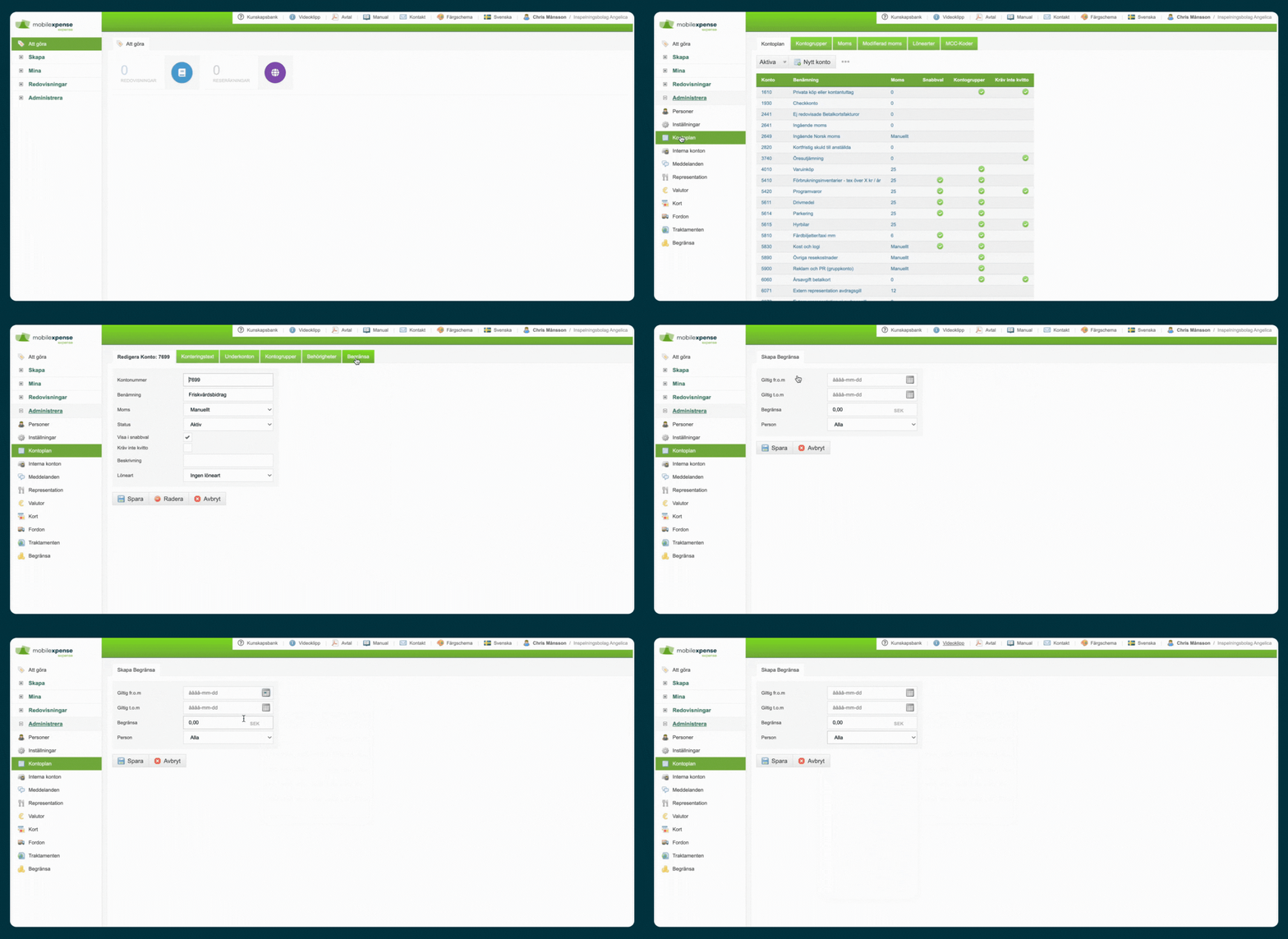
💰 Step 1 – Set the wellness limit
- Go to Accounting > Accounts.
- Select the account for wellness.
- Click Limit.
- Enter the date range (validity period) and the amount.
- Choose whether the limit applies to everyone or to specific people.
- Click Save.
✅ The wellness limit is now active.
👤 Step 2 – Set individual limits if needed
Use a separate limit for, for example:
- 🆕 New employees
- ⏱️ Part-time employees
- 📅 Fixed-term employees
👉 If you start in the middle of the year, or employees have a remaining balance from an earlier system, enter the remaining amount as the person's limit.
📊 Step 3 – Choose the reimbursement level
You decide how much of the wellness purchase is reimbursed, for example 50, 70, 80 or 100%.
- Go to Administrate > Settings.
- Open the Accountcoding tab and scroll to the bottom.
- Enter the reimbursement percentage.
- Click Save.
✅ The percentage-based reimbursement is now active.
📷 Step 4 – How the user registers a wellness purchase
- Take a photo of or upload the receipt.
- Select the wellness account.
- Save.
✅ Expense calculates the reimbursable part, splits the VAT and deducts the amount from the allowance.
| Receipt amount | Reimbursement level | Reimbursed and deducted from the allowance |
|---|---|---|
| SEK 1,000 | 70% | SEK 700 |
| SEK 2,000 | 70% | SEK 1,400 |
| SEK 4,000 | 80% | SEK 3,200 |
💳 Step 5 – Wellness with a company card
If the wellness purchase is paid with a company card, Expense splits the accounting automatically according to the reimbursement level.
Example at 80% and a purchase of SEK 4,000:
- 🌿 Wellness: SEK 3,200
- 📄 Other account: SEK 800
✅ The VAT is split according to the reimbursable part, and the whole transaction is accounted for correctly.
📈 Step 6 – Follow up the allowance
- 👨💼 Administrator: go to Administrate > Limit to see the amount used and the remaining balance per user.
- 👤 User: sees the used allowance, the remaining balance and the current period under My > Settings.
🎬 See how to set the limit
⚠️ Good to know
- 🚫 When the limit is reached, the user gets a warning and cannot register more wellness receipts.
- ✏️ The transaction then needs to be adjusted or deleted.
- 📅 The limit applies to the date range you enter.
💡 Tips for the best result
- ✅ Set the limit at the start of the year
- 📢 Tell users about the size of the allowance and the reimbursement level
- 🧪 Test a few receipts before you go live
- 🔄 Review the reimbursement level every year
❓ Frequently asked questions (FAQ)
Can we reimburse less than 100% of the wellness purchase?
Yes. You choose the percentage yourselves.
Can we set different limits for different people?
Yes, individual limits can be set.
Can we start using the feature in the middle of the year?
Yes. Enter the remaining amount as an individual limit for those who have already used part of the allowance.
Does it work with company cards?
Yes, the accounting for the purchase is split automatically according to the reimbursement level.
Does the administrator need to calculate the reimbursement?
No, the reimbursement, VAT and balance are calculated automatically.
✅ Summary
- 💰 Set a limit for the wellness allowance – shared or individual
- 📊 Choose any reimbursement level
- 💳 Works for both expenses and company cards
- 📈 Follow up the balance automatically